

Google Analytics 4 is the standard analytics platform for digital marketers in 2026, yet most marketing teams barely scratch the surface of what it offers. The default reports provide basic traffic data, but the real power of GA4 lies in custom reports and explorations that surface actionable insights about user behavior, conversion paths, and campaign performance.
After working with dozens of marketing teams on their analytics and reporting setups, we have identified the 7 best GA4 reports that every marketer should have configured. These reports will give you a clear picture of what is working, what is not, and where to focus your budget for maximum impact.
Why Custom GA4 Reports Matter More Than Default Views
GA4’s default reports are designed for general use. They show you traffic numbers, user counts, and basic engagement metrics. But marketing decisions require deeper analysis — you need to understand not just how many people visited, but where they came from, what they did, and why they did or did not convert.
Custom reports and explorations in GA4 allow you to combine dimensions and metrics in ways that default reports cannot. They also let you apply segments, filter by date ranges, and create visualizations that tell a story rather than just displaying numbers.
1. Traffic Acquisition Report With Channel Grouping
Why it matters: Understanding which channels drive traffic is fundamental, but the default traffic acquisition report groups data too broadly. A customized version gives you granular control over how channels are categorized and compared.
How to set it up:
- Navigate to Reports > Acquisition > Traffic Acquisition
- Click the pencil icon (Customize report) in the top right
- Add dimensions: Session source/medium, Session campaign, Landing page
- Add metrics: Sessions, Engaged sessions, Engagement rate, Conversions, Revenue
- Set the primary dimension to Session default channel group
- Apply a secondary dimension of Session source/medium for deeper drill-down
- Save as a custom report in your report library
Key metrics to watch:
- Engagement rate by channel: If organic search drives high traffic but low engagement (below 50%), your content may not match search intent
- Conversions by source/medium: Identify which specific sources (not just channels) drive the most conversions. “google / cpc” versus “facebook / cpc” tells a more useful story than just “Paid Search” versus “Paid Social”
- Revenue per session by channel: Divide total revenue by sessions for each channel to find your most valuable traffic sources
Actionable insight example: If you discover that Instagram Stories traffic has a 65% engagement rate but only 0.2% conversion rate, while Google Search has a 45% engagement rate but 3.1% conversion rate, you know to allocate more conversion budget to Search and use Instagram for awareness.
2. User Engagement and Retention Report
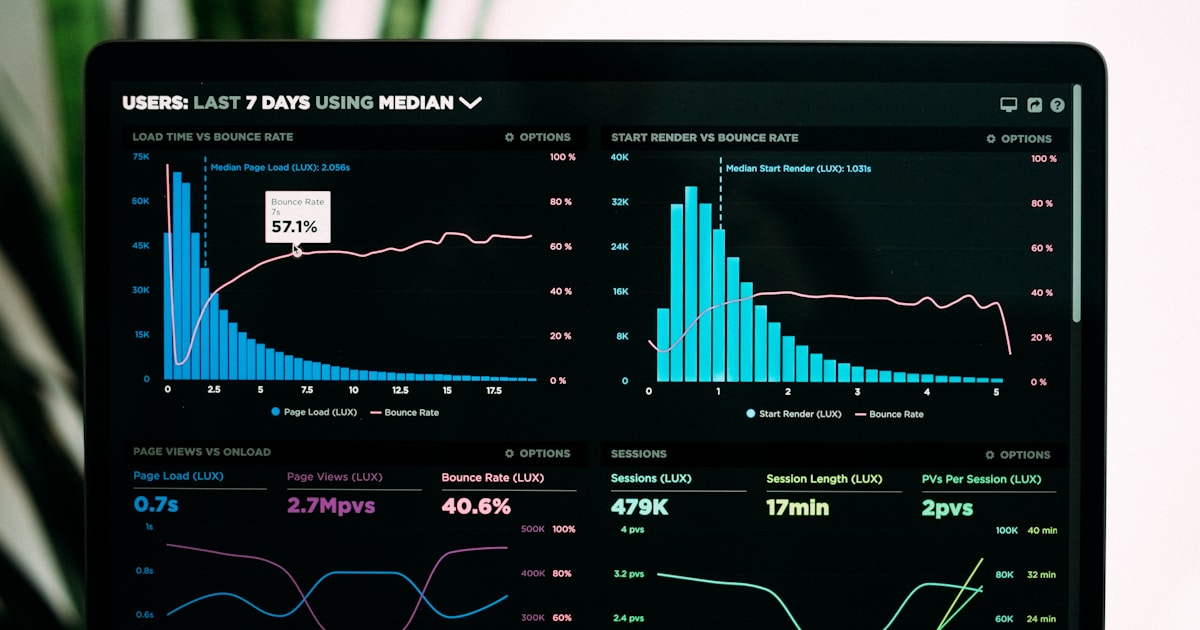
Why it matters: GA4 introduced engagement-based metrics as replacements for bounce rate and session duration. The user engagement report reveals how deeply users interact with your content, helping you identify pages and features that resonate versus those that fail to hold attention.
How to set it up:
- Navigate to Reports > Engagement > Engagement overview
- Customize the report to add: Average engagement time per session, Engaged sessions per user, Events per session
- Create a secondary view grouped by Page path to see engagement at the page level
- Add a comparison filter: New users vs. Returning users
- Under Retention section, configure the Retention by cohort chart to show daily, weekly, and monthly retention
Key metrics to watch:
- Average engagement time: Benchmark is 50-90 seconds for content sites, 2-4 minutes for SaaS/tool sites. If your average is below 30 seconds, users are not finding what they need
- Engaged sessions per user: A ratio above 1.5 indicates healthy repeat engagement. Below 1.0 suggests users are bouncing on first visit
- User retention curves: Week 1 retention should be at least 15-20% for healthy sites. If it drops below 5%, your content or product is not creating return habits
Actionable insight example: If blog posts have high engagement time (3+ minutes) but your product pages show under 30 seconds, the gap suggests product pages need content improvement — more detailed descriptions, better images, or clearer value propositions.
3. Conversion Funnel Analysis (Exploration)
Why it matters: Understanding where users drop off in your conversion process is arguably the highest-value analysis any marketer can perform. A 10% improvement at a key funnel step can translate to significant revenue gains without increasing ad spend.
How to set it up:
- Navigate to Explore > Funnel exploration
- Click the + icon to create a new exploration
- Define your funnel steps (example for e-commerce):
- Step 1: session_start (any page visit)
- Step 2: view_item (product page view)
- Step 3: add_to_cart
- Step 4: begin_checkout
- Step 5: purchase
- Enable “Show elapsed time” to see how long users take between steps
- Add a breakdown dimension of “Device category” to compare mobile vs desktop funnels
- Toggle “Open funnel” vs “Closed funnel” to see whether users complete steps in order
Key metrics to watch:
- Step-to-step completion rate: Industry benchmarks: Product view to add-to-cart should be 8-12%. Add-to-cart to purchase should be 30-50%. If your rates are significantly below these, focus optimization there
- Abandonment rate by device: Mobile typically shows 15-25% higher abandonment than desktop. If the gap is larger, your mobile checkout needs attention
- Time between steps: If users take more than 3 days between add-to-cart and purchase, your remarketing and abandoned cart emails need to trigger faster
Actionable insight example: If 40% of users drop off between add-to-cart and begin_checkout, investigate your cart page for friction points — unexpected shipping costs, forced account creation, or confusing UI elements.
4. E-commerce Purchase Journey Report
Why it matters: For e-commerce and D2C brands, the purchase journey report provides a holistic view of buying behavior — which products are most viewed, most carted, and most purchased. It also reveals which products have high view-to-cart ratios but low purchase rates, indicating pricing or trust barriers.
How to set it up:

- Navigate to Reports > Monetization > E-commerce purchases
- Customize to add: Item views, Add to carts, Cart-to-view rate, Purchases, Purchase revenue, Average purchase revenue per user
- Set primary dimension to Item name or Item category
- Create a calculated metric: Purchase-to-view rate = Purchases / Item views (in a free-form exploration)
- Add a filter for your top 50 products by item views to focus on high-traffic items
Key metrics to watch:
- Cart-to-view rate by product: Average is 8-10%. Products below 5% may have pricing, imagery, or description issues
- Purchase-to-cart rate by product: Average is 35-45%. Products below 20% may face checkout friction or competitor comparison issues
- Average order value trends: Track weekly to detect seasonal shifts or the impact of promotions on basket size
Actionable insight example: If your best-selling product (by views) has a cart-to-view rate of only 3% while similar products are at 9%, the issue is likely on the product page itself. A/B test the price display, add social proof, or improve the product description.
5. Audience Demographics and Interests Report
Why it matters: Understanding who your actual users are — not just who you think they are — helps refine ad targeting, content strategy, and product development. GA4’s audience data, when properly configured, reveals demographic and interest patterns that can reshape your marketing approach.
How to set it up:
- First, ensure Google Signals is enabled: Admin > Data Settings > Data Collection > Enable Google signals data collection
- Navigate to Reports > User > User attributes > Demographics overview
- Customize to include: Country, City, Gender, Age, Interests
- Add metrics: Users, Sessions, Engagement rate, Conversions, Revenue
- Create a segment for “Purchasers” (users who triggered the purchase event) and compare against “All Users” to see how your buying audience differs from your browsing audience
Key metrics to watch:
- Conversion rate by age group: You may discover that while 18-24 year olds drive the most traffic, 25-34 year olds convert at 3x the rate — indicating where to focus ad targeting
- Revenue by city: For Indian D2C brands, tier-1 vs tier-2 city performance often differs dramatically. Mumbai may drive higher AOV while Jaipur drives higher volume
- Interest categories of converters: GA4’s interest data helps identify affinity audiences for Google Ads and Facebook Ads targeting
Actionable insight example: If your top purchasing demographic is women aged 25-34 in tier-2 cities with an interest in “Health and Fitness,” but your ad targeting focuses on metro cities and broad audiences, you are wasting significant budget. Narrow your targeting to match actual buyer profiles.
6. Landing Page Performance Report
Why it matters: Your landing pages are where first impressions happen. This report identifies which pages attract the most traffic, which ones convert, and which ones need optimization. For brands investing in SEO and paid campaigns, landing page performance directly impacts ROI.
How to set it up:
- Navigate to Reports > Engagement > Landing page
- Customize the report to add: Sessions, Users, New users, Engagement rate, Average engagement time, Conversions, Revenue, Bounce rate
- Add a secondary dimension of “Session source/medium” to see which traffic sources perform best on each landing page
- Create a comparison: Organic Search traffic vs Paid traffic on the same landing pages
- Sort by sessions (descending) to prioritize your highest-traffic pages for optimization
Key metrics to watch:

- Bounce rate by landing page: Pages above 70% bounce rate need immediate attention. Check for slow load times, mismatched user intent, or poor above-the-fold content
- Conversion rate by landing page: Your top 10 landing pages should be converting at 2-5%. Pages below 1% are leaking revenue
- Engagement time vs conversion rate: The correlation reveals whether your content is engaging but not persuasive (high time, low conversion) or persuasive but thin (low time, moderate conversion)
Actionable insight example: If your homepage has a 2.1% conversion rate from organic traffic but only 0.8% from paid traffic, your ads may be attracting the wrong audience or setting expectations that the homepage does not deliver on. Consider dedicated landing pages for paid campaigns.
7. Custom Attribution Exploration
Why it matters: Most marketing teams rely on last-click attribution by default, which drastically undervalues awareness and consideration channels. GA4’s attribution models help you understand the true contribution of each touchpoint in the conversion path.
How to set it up:
- Navigate to Advertising > Attribution > Conversion paths
- Select your primary conversion event (e.g., purchase)
- Review the default Data-driven attribution model that GA4 applies
- Compare with Last click and First click models using the model comparison tool
- For deeper analysis, create a Free-form exploration:
- Add dimensions: Session source/medium, Session campaign
- Add metrics: Conversions, Revenue
- Apply a segment of “Users who converted”
- Look at the path length report to understand how many touchpoints your average conversion requires
- Navigate to Admin > Attribution Settings to select your preferred attribution model and lookback window (recommended: 30-day for e-commerce, 90-day for B2B)
Key metrics to watch:
- Assisted conversions by channel: Channels with high assisted-to-last-click ratios (above 2.0) are undervalued by default reporting. YouTube and Display often fall here
- Average conversion path length: If your average path requires 4+ touchpoints, single-channel attribution is meaningless. You need multi-touch analysis
- Time to conversion: Understanding whether most conversions happen within 1 day or take 2+ weeks helps set proper remarketing windows and email nurture timelines
Actionable insight example: If YouTube Ads show 0.3x ROAS on last-click but contribute to 35% of conversion paths as an early touchpoint, cutting YouTube budget would likely decrease conversions across all channels. Use data-driven attribution to set budgets rather than last-click ROAS.
Bonus: Setting Up Automated Insights and Alerts
Beyond these 7 reports, configure GA4’s automated insights to catch anomalies you might miss:
- Custom insights: Navigate to Reports > Insights and create alerts for significant traffic drops (over 20% week-over-week), conversion rate decreases, and sudden spikes in specific events
- Scheduled email reports: Use Looker Studio connected to GA4 to create automated weekly dashboards that arrive in your inbox every Monday morning
- Anomaly detection: GA4’s machine learning automatically flags unusual patterns — make sure to check the Insights card on your home screen daily
Key Takeaways
The best GA4 reports for marketers go beyond default traffic views to reveal actionable insights about user behavior, conversion paths, and channel attribution. Start by setting up the conversion funnel analysis and landing page performance report — these two alone will likely reveal optimization opportunities worth significant revenue. Then layer in the attribution exploration to ensure your budget allocation reflects true channel contribution rather than last-click bias. Remember, GA4 data is only as good as your tracking implementation — invest time in proper event setup and data validation before drawing conclusions.
Ready to Implement These Strategies?
At Balistro Consultancy, we help D2C and B2B brands implement data-driven marketing strategies that deliver measurable results. Our certified specialists manage over ₹50 lakh in monthly ad spend across Google Ads, Facebook Ads, SEO, email marketing, and data analytics.
Book a free consultation to discuss how we can help your brand grow.